Teleprompter app for iPhone
A teleprompter on your iPhone that keeps up with you.
VideoPrompter turns an iPhone into a teleprompter that follows your voice. Record with the front or back camera while the script runs right next to the lens, so your eyes stay close to the camera. Each take can be saved to Photos, shared or discarded. Requires iOS 26.
First 3 sessions free · then $7.99/month or $39.99/year (7-day free trial) · iOS 26, iPadOS 26, macOS 26
Last updated
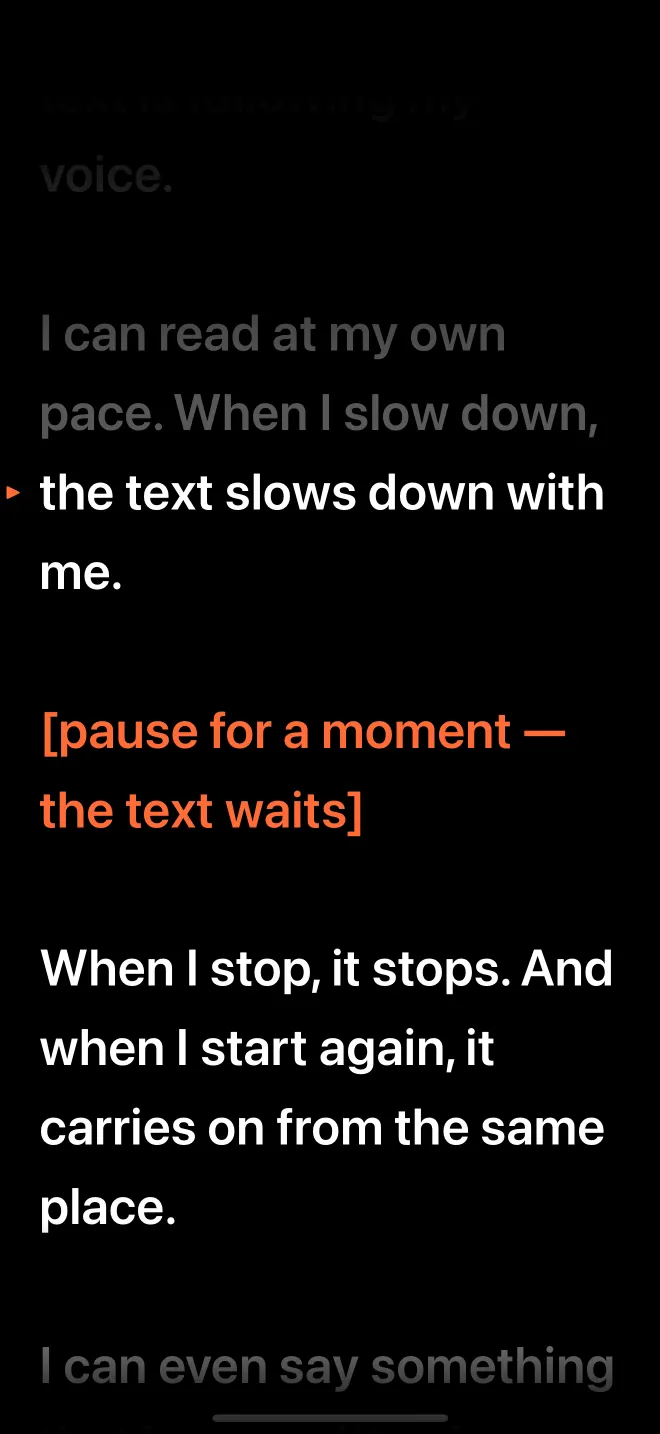
How do you record yourself with a teleprompter on iPhone?
Write or import the script, choose the camera, and press Record. The countdown runs, and the script follows your voice while the camera records.
- Add the script. Type it, paste it, or import text, Word (.docx), PDF or RTF. Put directions in [square brackets]; they are shown but not expected to be read.
- Pick the language you will read in. VideoPrompter follows one language per script.
- Open the recorder and choose the front or back camera. The script runs in a band next to the lens.
- Read. The text moves with your voice. Pause and it waits; keep going and it carries on.
- Review the take. Save it to Photos, share it, or discard it and go again.
Good to know. A take you do not save is deleted when you close the recorder, so save or share the good ones first. VideoPrompter asks only to add videos to your Photos library; it cannot see what is already there.
What can you change on the prompter?
Everything that affects how easy the text is to read from arm's length.
| Setting | Range |
|---|---|
| Text size | 18 to 110 points |
| Line spacing | 1.0 to 2.0 |
| Side margins | 2% to 30% of the width |
| Reading line | From 12% to 60% down the screen |
| Colours | Night (white on black), Paper (black on white), Amber |
| Read words | Fade, or stay as they are |
| Auto scroll speed | 60 to 260 words per minute |
| Countdown | 0 to 10 seconds |
| Mirror / flip | Left to right, upside down, for teleprompter glass |
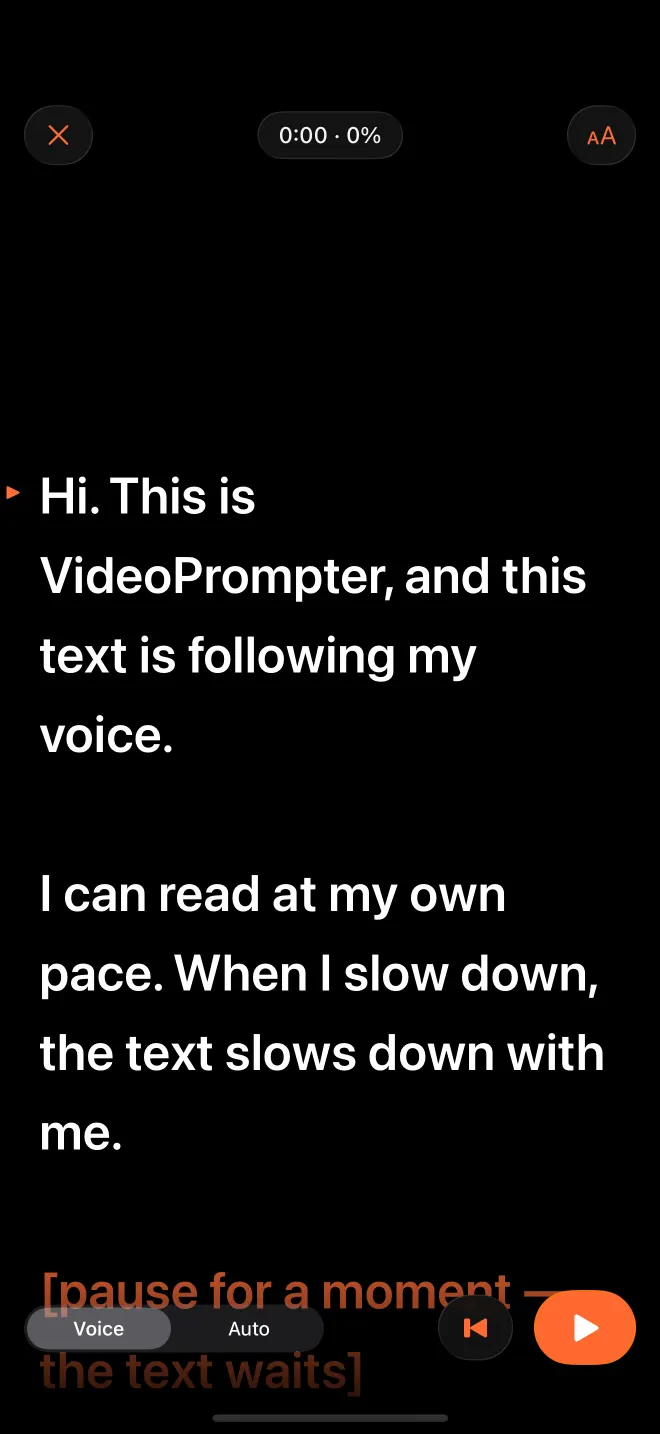
Voice or Auto, one tap apart. 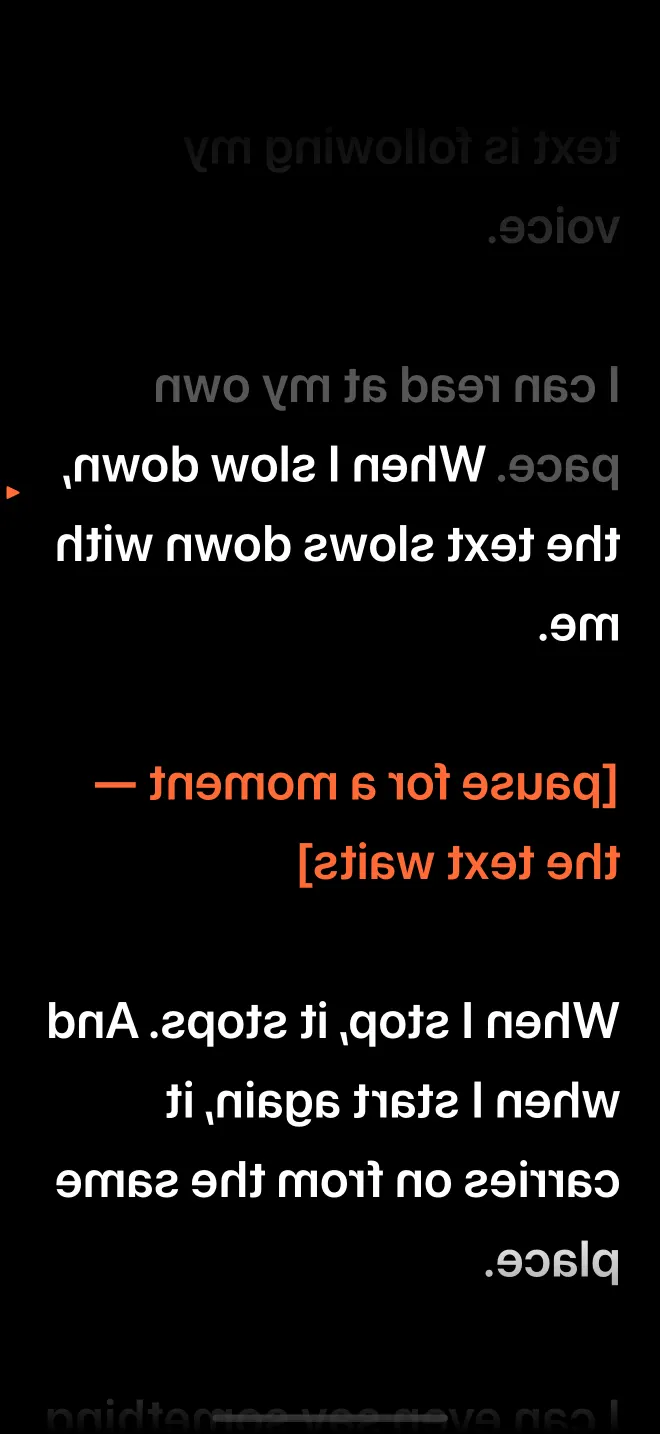
Mirrored for a beam-splitter rig. 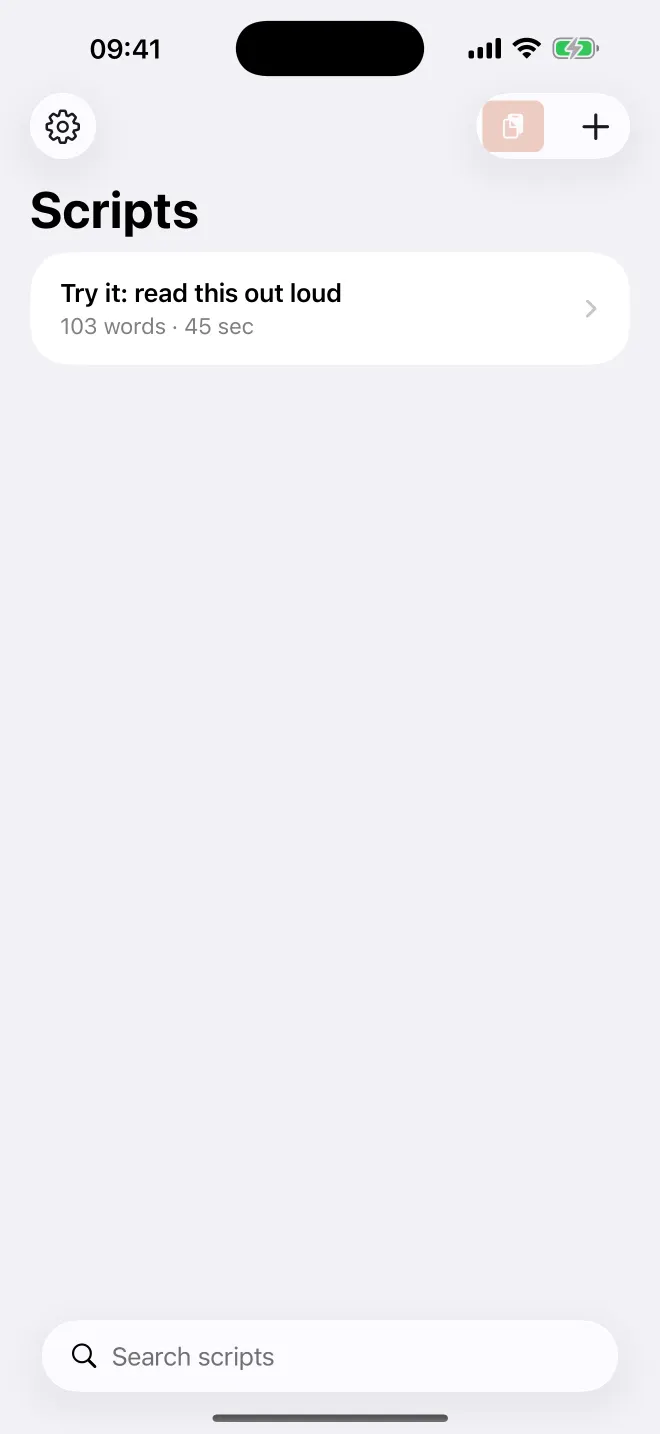
As many scripts as you like.
Why does the script sit next to the lens?
Because viewers notice where your eyes are. The closer the line you read is to the camera, the less your gaze drifts away from the viewer.
On iPhone the front camera is at the top of the screen, so the script band sits just below it. Keep the phone at arm's length or further and the gap between the lens and the words shrinks to a small angle. A shorter line length (wider side margins) also keeps your eyes from sweeping left and right. More on this in how to keep eye contact on video.
Frequently asked questions
Which iPhones can run VideoPrompter?
Any iPhone that runs iOS 26. Voice follow uses Apple's on-device speech recognition, which iOS 26 provides.
Can I use the back camera?
Yes. The recorder works with the front or the back camera. With the back camera you usually need someone holding the phone, a mirror rig, or a second screen; the script stays on the iPhone screen.
Where are my videos saved?
Nowhere until you decide. After each take VideoPrompter asks: Save to Photos, Share or Discard. Saved takes are in the Photos app.
Can I read while filming in another camera app?
No. VideoPrompter records in its own recorder on iPhone. On a Mac, the prompter floats above other apps instead.
VideoPrompter
Read at your pace. The script keeps up.
First 3 sessions free · then $7.99/month or $39.99/year (7-day free trial) · iOS 26, iPadOS 26, macOS 26